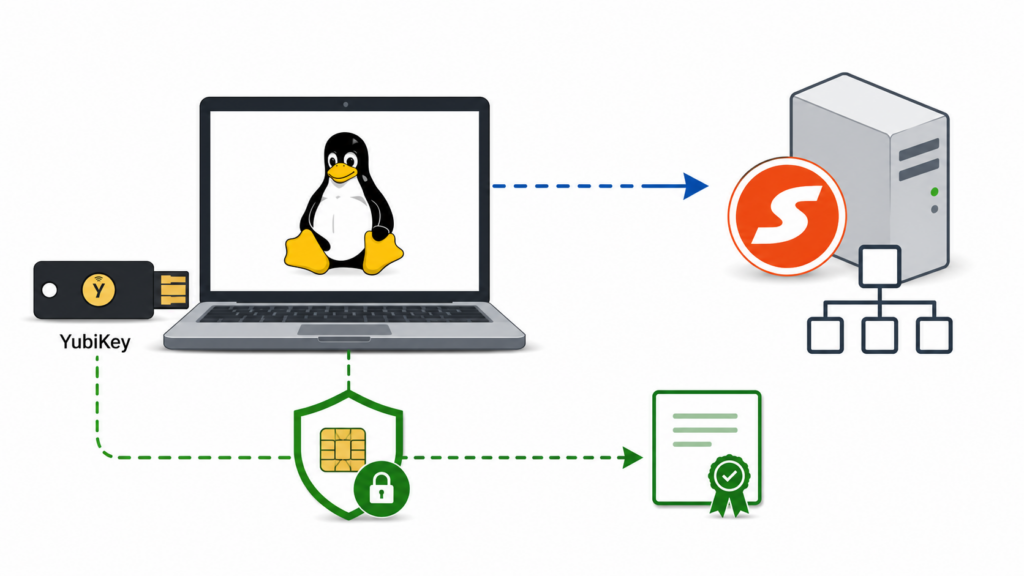
This article describes how to join a Debian- or Ubuntu-based Linux workstation to a Samba Active Directory domain using realmd and SSSD.
The domain join is the foundation for a later YubiKey smart card login configuration using Kerberos PKINIT. Smart card authentication itself is not enabled in this article. The goal here is to establish a working domain membership, Kerberos configuration and SSSD-based user lookup before adding the smart card-specific PAM configuration.
Example environment used in this article:
- Linux hostname:
lm068 - Active Directory computer name:
LM068 - Kerberos and DNS domain:
schrottplatz.internal - Example domain user:
christian@schrottplatz.internal - Domain controller implementation: Samba Active Directory Domain Controller
All names used below are examples. Replace the hostname, domain name, user names, certificate paths and server addresses with values appropriate for your environment.
1. Prerequisites
Before joining the workstation, the following infrastructure should already be available:
- A functioning Samba Active Directory domain
- Working DNS resolution for the domain and its domain controllers
- Correct time synchronization between the Linux workstation and the domain controllers
- A functioning Kerberos Key Distribution Center
- A Public Key Infrastructure for the later smart card configuration
- A trusted root CA certificate
- Valid KDC certificates on the Samba Active Directory domain controllers
- A domain account with permission to add computers to the domain
The PKI and KDC certificates are not strictly required for a conventional password-based domain join. However, they are required later when Kerberos PKINIT and YubiKey smart card authentication are configured.
DNS is especially important
The Linux workstation must use a DNS server that can resolve the Active Directory DNS zone. In most environments, this means using one or more domain controllers as DNS servers.
Check the current DNS configuration:
resolvectl statusVerify that the domain and domain controllers can be resolved:
getent hosts schrottplatz.internal
getent hosts vm117.schrottplatz.internal
Active Directory service records should also be available:
dig +short SRV _kerberos._udp.schrottplatz.internal
dig +short SRV _ldap._tcp.schrottplatz.internal
If these records cannot be resolved, the domain join will usually fail or produce an incomplete configuration.
Verify time synchronization
Kerberos is sensitive to time differences. The Linux workstation and domain controllers should have closely synchronized clocks.
timedatectl statusThe output should show that the system clock is synchronized. Also verify the current time:
date2. Update the Linux System
Update the package index and install available upgrades:
sudo apt update
sudo apt upgrade
Reboot the system if the update installed a new kernel or important system components:
sudo reboot3. Install the Required Packages
Install the packages required for the domain join, SSSD, Kerberos and the later smart card configuration:
sudo apt install \
  realmd \
  sssd \
  sssd-tools \
  sssd-dbus \
  adcli \
  samba-common-bin \
  packagekit \
  cifs-utils \
  keyutils \
  krb5-user \
  krb5-pkinit \
  oddjob \
  oddjob-mkhomedir \
  opensc \
  pcscd \
  p11-kit \
  yubikey-manager \
  pamtester
The most important packages have the following purposes:
| Package | Purpose |
|---|---|
realmd |
Discovers identity domains and manages domain membership. |
sssd |
Provides domain user lookup, authentication and credential caching. |
sssd-tools |
Provides diagnostic and administrative commands such as sssctl. |
sssd-dbus |
Provides additional SSSD D-Bus interfaces used by some smart card workflows. |
adcli |
Creates and manages the computer account in Active Directory. |
krb5-user |
Provides Kerberos client utilities such as kinit and klist. |
krb5-pkinit |
Adds Kerberos PKINIT support for certificate-based authentication. |
oddjob-mkhomedir |
Can automatically create home directories for domain users. |
opensc |
Provides smart card and PKCS#11 support. |
pcscd |
Provides communication with smart card readers and YubiKeys. |
p11-kit |
Provides PKCS#11 module management. |
yubikey-manager |
Provides the ykman utility for managing YubiKey applications. |
pamtester |
Allows PAM authentication stacks to be tested without logging out. |
During installation, the Kerberos package may ask for a default realm. In this example, the Kerberos realm is:
SCHROTTPLATZ.INTERNALKerberos realm names are conventionally written in uppercase, while DNS domain names are normally written in lowercase.
4. Set the Linux Hostname
Set the hostname before joining the domain:
sudo hostnamectl set-hostname lm068Verify the result:
hostnamectl
hostname
hostname --fqdn
Depending on the local DNS configuration, hostname --fqdn may not return the final fully qualified domain name before the system has been joined and corresponding DNS records are available.
It is also useful to inspect /etc/hosts and ensure that the local hostname is not incorrectly mapped:
cat /etc/hostsA typical local entry may look similar to:
127.0.1.1 lm0685. Discover the Active Directory Domain
Use realmd to discover the domain:
sudo realm discover schrottplatz.internalA successful result should identify the domain as a Kerberos realm and typically show information similar to:
schrottplatz.internal
  type: kerberos
  realm-name: SCHROTTPLATZ.INTERNAL
  domain-name: schrottplatz.internal
  configured: no
  server-software: active-directory
  client-software: sssd
The exact output may differ depending on the Linux distribution, Samba version and installed packages.
If domain discovery fails, verify:
- The workstation is using the correct DNS server.
- The Active Directory SRV records can be resolved.
- The domain controller is reachable.
- The system time is correct.
- No firewall is blocking DNS, Kerberos, LDAP or SMB traffic.
6. Join the Domain
Join the workstation to the domain:
sudo realm join \
  --verbose \
  --user=Administrator \
  --computer-name=LM068 \
  schrottplatz.internal
Enter the password of the specified domain administrator when prompted.
The value supplied with --computer-name becomes the Active Directory computer account name. Keeping it consistent with the Linux hostname avoids unnecessary confusion.
Security note: A domain administrator account is convenient for testing, but it is not always necessary. In a production environment, a delegated account with permission to join computers to a specific organizational unit is preferable.
Optional: join the computer to a specific organizational unit
When the computer account should be created in a specific Active Directory organizational unit, an OU can be supplied:
sudo realm join \
  --verbose \
  --user=Administrator \
  --computer-name=LM068 \
  --computer-ou="OU=Linux Computers,DC=schrottplatz,DC=internal" \
  schrottplatz.internal
The distinguished name must match the structure of your Active Directory domain.
7. Verify the Domain Membership
Display the current realm configuration:
realm listA successful configuration should show entries similar to:
schrottplatz.internal
  type: kerberos
  realm-name: SCHROTTPLATZ.INTERNAL
  domain-name: schrottplatz.internal
  configured: kerberos-member
  server-software: active-directory
  client-software: sssd
  login-formats: %U@schrottplatz.internal
The important value is:
configured: kerberos-memberVerify the computer account
Use adcli to test the computer account:
sudo adcli testjoinA successful test should report:
Successfully validated join to domainThis verifies that the local machine account and the corresponding Active Directory computer account still share a valid password.
Check the Kerberos keytab
The domain join should create a machine keytab at /etc/krb5.keytab.
sudo klist -k /etc/krb5.keytabThe output should contain host and restricted host principals for the workstation. Depending on the configuration, entries may include:
host/lm068@SCHROTTPLATZ.INTERNAL
host/lm068.schrottplatz.internal@SCHROTTPLATZ.INTERNAL
restrictedkrbhost/lm068@SCHROTTPLATZ.INTERNAL
restrictedkrbhost/lm068.schrottplatz.internal@SCHROTTPLATZ.INTERNAL
Verify SSSD
Check that the SSSD service is running:
systemctl status sssdAlso check whether it is enabled at boot:
systemctl is-enabled sssdIf necessary:
sudo systemctl enable --now sssdRun the SSSD configuration checker:
sudo sssctl config-checkThe command should not report syntax errors.
8. Verify Domain User Lookup
Before testing passwords or smart cards, verify that Linux can resolve domain users through NSS and SSSD.
getent passwd christian@schrottplatz.internalYou can also use:
id christian@schrottplatz.internalA successful result should display the user’s UID, primary group and additional domain group memberships.
Depending on the SSSD configuration, the short user name may also work:
id christianHowever, using the fully qualified user name during the initial configuration avoids ambiguity:
christian@schrottplatz.internalInspect the generated SSSD configuration
The domain join normally creates:
/etc/sssd/sssd.confInspect the file:
sudo cat /etc/sssd/sssd.confThe file permissions are security-sensitive and should normally be:
sudo stat -c '%U %G %a %n' /etc/sssd/sssd.confExpected ownership and mode:
root root 600 /etc/sssd/sssd.confCorrect them if necessary:
sudo chown root:root /etc/sssd/sssd.conf
sudo chmod 600 /etc/sssd/sssd.conf
9. Test Password-Based Kerberos Authentication
Before adding PKINIT and smart card authentication, conventional Kerberos authentication should work.
Request a Kerberos ticket:
kinit christian@SCHROTTPLATZ.INTERNALEnter the user’s domain password and inspect the resulting ticket:
klistA successful result should show a ticket-granting ticket similar to:
krbtgt/SCHROTTPLATZ.INTERNAL@SCHROTTPLATZ.INTERNALRemove the ticket after the test:
kdestroy
If password-based kinit does not work, PKINIT-based smart card login should not be configured yet. First resolve the underlying DNS, time synchronization, Kerberos or account problem.
10. Test SSSD Authentication
The domain join should also be tested through the PAM and SSSD authentication path.
One possible test is:
sudo pamtester login christian@schrottplatz.internal authenticate
The exact PAM service used for this test depends on the Linux distribution and desktop environment. Testing PAM with pamtester is safer than repeatedly testing through the graphical login screen.
11. Configure Automatic Home Directory Creation
A successful authentication does not automatically guarantee that the user has a home directory.
If the desktop login succeeds and immediately returns to the login screen, a missing or inaccessible home directory is a common cause.
Check whether the user has a valid home directory path:
getent passwd christian@schrottplatz.internalThe output should include a home directory such as:
/home/christian@schrottplatz.internalOn Debian- and Ubuntu-based systems, automatic home directory creation can usually be enabled with:
sudo pam-auth-updateEnable:
Create home directory on login
Alternatively, verify that the PAM configuration contains pam_mkhomedir.so.
A typical session entry is:
session required pam_mkhomedir.so skel=/etc/skel umask=0077After the first successful login, verify the home directory:
ls -ld '/home/christian@schrottplatz.internal'
The exact path depends on the SSSD options fallback_homedir, override_homedir and use_fully_qualified_names.
12. Check Login Authorization
Domain membership does not necessarily mean that every domain user is permitted to log in.
Display the current realm access policy:
realm listTo permit all domain users:
sudo realm permit --allFor a more restrictive configuration, permit only selected users:
sudo realm permit christian@schrottplatz.internalOr permit an Active Directory group:
sudo realm permit -g 'Linux Users@schrottplatz.internal'Restricting login access to an appropriate domain group is generally preferable to permitting the entire domain.
13. Check the NSS Configuration
The Name Service Switch must use SSSD for user and group lookup.
grep -E '^(passwd|group|shadow):' /etc/nsswitch.confThe relevant lines normally contain sss, for example:
passwd:         files systemd sss
group:          files systemd sss
shadow:         files systemd sss
14. Check Required Services
Verify the important services:
systemctl status sssd
systemctl status pcscd
systemctl status oddjobd
For the domain join itself, SSSD is the most important service. The pcscd service becomes relevant when the YubiKey smart card is used.
Enable the services where appropriate:
sudo systemctl enable --now sssd
sudo systemctl enable --now pcscd.socket
Some distributions use socket activation for pcscd, so the socket may be active even when the service is not continuously running.
15. Verify the YubiKey and Smart Card Reader
Although smart card login is configured in the next article, it is useful to verify that the YubiKey is already detected.
Connect the YubiKey and run:
ykman infoCheck whether the PIV application is available:
ykman piv infoVerify that OpenSC can see the smart card:
opensc-tool --list-readers
opensc-tool --name
You can also inspect PKCS#11 tokens using:
p11-kit list-modulesOn some systems, pcscd may run under its own dedicated user account and therefore lack permission to access the YubiKey USB device. If the device is assigned to the plugdev group, add the pcscd user to that group:
sudo usermod -aG plugdev pcscd
sudo systemctl restart pcscd.socket pcscd.service
Afterwards, disconnect and reconnect the YubiKey. This allows the PC/SC daemon to access the smart card interface before login, which is required for PIV-based authentication at the display manager.
16. Useful Diagnostic Commands
Check SSSD domain status
sudo sssctl domain-list
sudo sssctl domain-status schrottplatz.internal
Inspect a domain user
sudo sssctl user-checks christian@schrottplatz.internalClear the SSSD cache
After changing SSSD settings, cached user or group information can sometimes cause confusing results.
sudo sss_cache -E
sudo systemctl restart sssd
Only clear the cache when necessary, especially on systems that rely on cached offline credentials.
Inspect logs
journalctl -u sssd
journalctl -u realmd
journalctl -b | grep -i kerberos
SSSD also writes detailed logs below:
/var/log/sssd/For example:
sudo less /var/log/sssd/sssd_schrottplatz.internal.log17. Recommended Validation Checklist
Before continuing with YubiKey smart card authentication, all of the following checks should succeed:
realm discover schrottplatz.internalfinds the domain.realm listreportsconfigured: kerberos-member.sudo adcli testjoinvalidates the machine account.sudo klist -k /etc/krb5.keytabshows host principals.systemctl status sssdreports a running service.sudo sssctl config-checkreports no configuration errors.id christian@schrottplatz.internalresolves the domain user.getent passwd christian@schrottplatz.internalreturns a valid user entry.- Password-based
kinitsuccessfully obtains a Kerberos ticket. - The user is permitted by the current
realm permitpolicy. - A valid home directory is configured or automatically created.
- The YubiKey is visible through
ykman, OpenSC and PC/SC. - The workstation trusts the root CA that issued the KDC certificates.
18. Common Problems
Realm discovery fails
The most common cause is incorrect DNS configuration. The workstation must be able to resolve the Active Directory SRV records.
The domain join reports insufficient permissions
Verify that the specified user is allowed to create or update the computer account. Also check whether an existing computer account named LM068 already exists with incompatible permissions or credentials.
Domain users cannot be resolved
Check SSSD, the NSS configuration and DNS:
sudo sssctl config-check
systemctl status sssd
getent passwd christian@schrottplatz.internal
Kerberos reports clock skew
Synchronize the workstation and domain controller clocks. Even a relatively small time difference can prevent Kerberos authentication.
Login succeeds but immediately returns to the login screen
Check the following:
- The user’s home directory exists.
- The home directory is owned by the correct UID and group.
- The login shell exists.
- The graphical session can write to the home directory.
- PAM includes the required SSSD and home-directory modules.
- The display manager accepts fully qualified domain user names.
Useful commands include:
getent passwd christian@schrottplatz.internal
id christian@schrottplatz.internal
ls -ld '/home/christian@schrottplatz.internal'
journalctl -b | grep -iE 'lightdm|pam|sssd|session'
19. Next Step
At this point, the workstation is a functioning member of the Active Directory domain and conventional Kerberos authentication should work.
The next article will configure certificate trust, Kerberos PKINIT, SSSD certificate mapping and PAM so that a domain user can log in using a YubiKey PIV certificate and PIN:
Enabling YubiKey Smart Card Login on a Domain-Joined Linux Workstation
Disclaimer
This configuration was tested in my own environment using a Samba Active Directory domain named schrottplatz.internal and a Linux workstation named lm068. Package names, PAM configuration and generated files may differ between Linux distributions and software versions.
Always test authentication changes in a separate terminal or local root session before logging out. An incorrect PAM, SSSD or Kerberos configuration can prevent users from logging in.