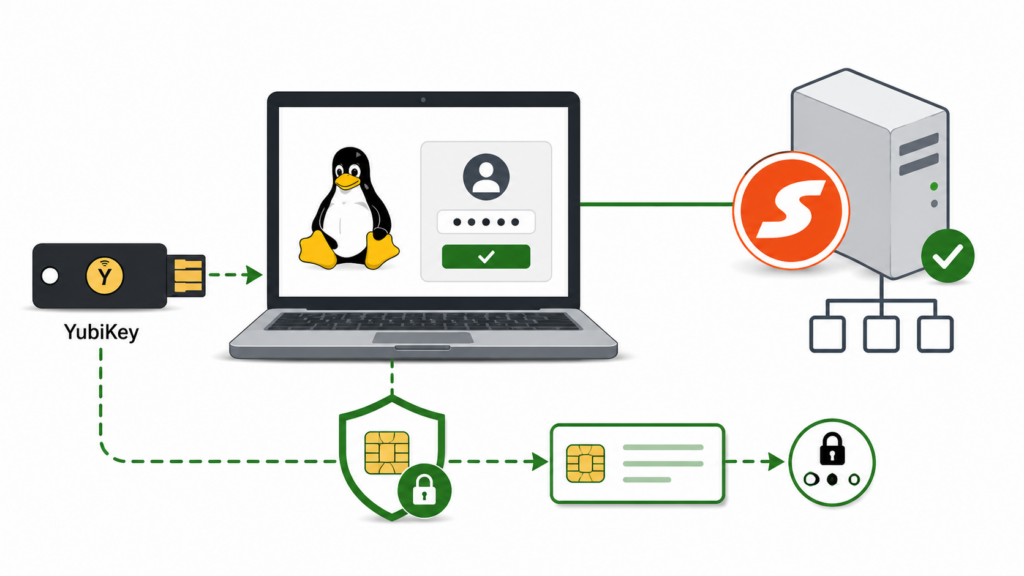
This article describes how to enable YubiKey PIV smart card login on a Debian- or Ubuntu-based Linux workstation that has already been joined to a Samba Active Directory domain.
The authentication process uses the certificate and private key stored in the YubiKey PIV application. Kerberos PKINIT authenticates the user against the domain controllers, while SSSD and PAM integrate the certificate-based authentication into the Linux login process.
The configuration shown here was tested with LightDM and the following example environment:
- Linux workstation:
lm068 - Active Directory computer account:
LM068$ - DNS domain:
schrottplatz.internal - Kerberos realm:
SCHROTTPLATZ.INTERNAL - Primary domain controller:
vm117.schrottplatz.internal - Secondary domain controller:
vm011.schrottplatz.internal - Example user:
christian@schrottplatz.internal - Display manager: LightDM
- Smart card implementation: YubiKey PIV
Replace all hostnames, domain names, user names, certificate paths and PAM service names with values appropriate for your environment.
Important: Keep a local root terminal or another working administrative session open while changing SSSD, Kerberos or PAM. An incorrect configuration can prevent both password and smart card login.
1. Prerequisites
The workstation should already be joined to the Active Directory domain and conventional domain authentication should work before smart card authentication is configured.
The complete domain join is described in the preceding article:
Joining a Linux Workstation to a Samba Active Directory Domain for YubiKey Smart Card Login
At minimum, verify the following:
- The Samba Active Directory domain is functioning.
- The workstation is successfully joined to the domain.
- DNS service records for Kerberos and LDAP can be resolved.
- The workstation and domain controllers have synchronized clocks.
- Domain users can be resolved through SSSD.
- Password-based Kerberos authentication works.
- The user has a valid PIV authentication certificate on the YubiKey.
- The certificate contains an identity that can be associated with the Active Directory user.
- The Samba domain controllers have valid KDC certificates.
- The workstation has access to the root CA and any intermediate CA certificates required to validate the KDC certificates.
Verify the domain join
realm list
sudo adcli testjoin
id christian@schrottplatz.internal
getent passwd christian@schrottplatz.internal
Verify password-based Kerberos authentication
kinit christian@SCHROTTPLATZ.INTERNAL
klist
kdestroy
Do not continue with PKINIT until conventional password-based Kerberos authentication works reliably.
2. Required Packages
Most required packages should already have been installed during the domain join. The following command installs the relevant Kerberos, SSSD, PAM, OpenSC and YubiKey components:
sudo apt update

sudo apt install \
  realmd \
  sssd \
  sssd-tools \
  sssd-dbus \
  libpam-sss \
  libnss-sss \
  adcli \
  samba-common-bin \
  krb5-user \
  krb5-pkinit \
  opensc \
  pcscd \
  p11-kit \
  yubikey-manager \
  pamtester \
  oddjob \
  oddjob-mkhomedir
The most relevant packages for smart card authentication are:
| Package | Purpose |
|---|---|
krb5-user |
Provides the Kerberos client and commands such as kinit, klist and kdestroy. |
krb5-pkinit |
Provides the PKINIT plugin used for certificate-based Kerberos preauthentication. |
sssd |
Provides Active Directory identity lookup, authentication, caching and PAM integration. |
sssd-tools |
Provides diagnostic tools such as sssctl. |
sssd-dbus |
Provides the SSSD InfoPipe D-Bus responder used by some certificate and identity workflows. |
libpam-sss |
Connects PAM authentication to SSSD. |
libnss-sss |
Allows Linux to resolve domain users and groups through SSSD. |
opensc |
Provides the OpenSC PKCS#11 module and smart card diagnostic tools. |
pcscd |
Provides communication between applications and smart card readers. |
p11-kit |
Provides centralized PKCS#11 module management. |
yubikey-manager |
Provides the ykman utility for examining and managing the YubiKey. |
pamtester |
Allows individual PAM service configurations to be tested without using the graphical login screen. |
oddjob-mkhomedir |
Supports automatic creation of home directories for domain users. |
3. Verify the YubiKey and PIV Certificate
Connect the YubiKey and verify that it is detected:
ykman info
ykman piv info
Verify that OpenSC can see the smart card reader:
opensc-tool --list-readersA detected YubiKey should appear as a PC/SC reader.
Display basic information about the inserted card:
opensc-tool --name
opensc-tool --atr
List certificates and objects available through the OpenSC PKCS#11 module:
pkcs11-tool \
  --module /usr/lib/x86_64-linux-gnu/opensc-pkcs11.so \
  --list-objects
The exact OpenSC module path can differ between distributions and CPU architectures. Locate it if necessary:
find /usr/lib -name 'opensc-pkcs11.so' 2>/dev/null
The YubiKey should contain a certificate suitable for PIV authentication, normally in PIV slot 9a.
4. Create the SSSD Certificate Authority Trust File
Both Kerberos PKINIT and SSSD must be able to validate the relevant certificate chain.
In this example, the trust database is stored in:
/etc/sssd/pki/sssd_auth_ca_db.pemThe file should contain the public CA certificates required to validate the KDC and smart card certificates. It must not contain private keys.
Create the directory
sudo install -d \
  -o root \
  -g root \
  -m 0755 \
  /etc/sssd/pki
Verify that the source certificates use PEM format
A PEM certificate contains lines similar to:
-----BEGIN CERTIFICATE-----
...
-----END CERTIFICATE-----
Inspect the files:
head -n 2 subca.crt
head -n 2 ca.crt
Use OpenSSL to verify that each file can be parsed:
openssl x509 \
  -in subca.crt \
  -noout \
  -subject \
  -issuer \
  -serial \
  -dates

openssl x509 \
  -in ca.crt \
  -noout \
  -subject \
  -issuer \
  -serial \
  -dates
Convert DER certificates to PEM when necessary
If a certificate is stored in binary DER format, convert it before creating the trust file:
openssl x509 \
  -inform DER \
  -in subca.crt \
  -outform PEM \
  -out subca.pem

openssl x509 \
  -inform DER \
  -in ca.crt \
  -outform PEM \
  -out ca.pem
Use the converted .pem files in the following steps.
Create the combined CA bundle
Combine the intermediate CA certificate and root CA certificate:
cat subca.crt ca.crt | \
  sudo tee /etc/sssd/pki/sssd_auth_ca_db.pem \
  >/dev/null
When converted files were created, use:
cat subca.pem ca.pem | \
  sudo tee /etc/sssd/pki/sssd_auth_ca_db.pem \
  >/dev/null
Set secure and readable permissions:
sudo chown root:root \
  /etc/sssd/pki/sssd_auth_ca_db.pem

sudo chmod 0644 \
  /etc/sssd/pki/sssd_auth_ca_db.pem
The file contains public certificates only, so mode 0644 is appropriate.
Inspect the completed bundle
Count the certificates:
grep -c \
  'BEGIN CERTIFICATE' \
  /etc/sssd/pki/sssd_auth_ca_db.pem
Display all certificates in the bundle:
openssl crl2pkcs7 \
  -nocrl \
  -certfile /etc/sssd/pki/sssd_auth_ca_db.pem |
openssl pkcs7 \
  -print_certs \
  -noout
Verify the certificate chain
If the root CA and intermediate CA are available separately, verify the intermediate CA:
openssl verify \
  -CAfile ca.crt \
  subca.crt
The expected result is:
subca.crt: OKYou can also export the PIV authentication certificate from the YubiKey and verify it:
ykman piv certificates export \
  9a \
  yubikey-authentication.crt

openssl verify \
  -CAfile ca.crt \
  -untrusted subca.crt \
  yubikey-authentication.crt
The exact certificate chain depends on your PKI. Some environments use only a root CA, while others use one or more intermediate issuing CAs.
5. Configure Kerberos PKINIT
The Kerberos client configuration is one of the two most important files in this setup:
/etc/krb5.confIt defines the Kerberos realm, domain-to-realm mapping, KDC discovery and the CA trust anchors used to validate KDC certificates during PKINIT.
The following configuration was used in the example environment:
# Include configuration file snippets before everything else, in
# lexicographical order.
includedir /etc/krb5.conf.d/

[libdefaults]
    default_realm = SCHROTTPLATZ.INTERNAL
    dns_lookup_realm = false
    dns_lookup_kdc = true
    rdns = false

    pkinit_anchors = FILE:/etc/sssd/pki/sssd_auth_ca_db.pem
    pkinit_kdc_hostname = vm117.schrottplatz.internal
    pkinit_kdc_hostname = vm011.schrottplatz.internal

[realms]
    SCHROTTPLATZ.INTERNAL = {
        pkinit_anchors = FILE:/etc/sssd/pki/sssd_auth_ca_db.pem

        kdc = vm117.schrottplatz.internal
        kdc = vm011.schrottplatz.internal

        pkinit_kdc_hostname = vm117.schrottplatz.internal
        pkinit_kdc_hostname = vm011.schrottplatz.internal

        admin_server = vm117.schrottplatz.internal
    }

[domain_realm]
    .schrottplatz.internal = SCHROTTPLATZ.INTERNAL
    schrottplatz.internal = SCHROTTPLATZ.INTERNAL
Pay close attention to the realm spelling. The realm section must be named SCHROTTPLATZ.INTERNAL. A section named SCHOTTPLATZ.INTERNAL would not match the configured default realm.
Important Kerberos parameters
| Parameter | Description |
|---|---|
default_realm |
Defines the Kerberos realm used when a principal is entered without an explicit realm. |
dns_lookup_realm |
Controls whether DNS TXT records are used to determine the Kerberos realm. Explicit domain-to-realm mappings are used in this configuration. |
dns_lookup_kdc |
Allows Kerberos KDC discovery through DNS SRV records. |
rdns |
Disables reverse-DNS-based hostname canonicalization. This avoids unexpected principal name changes caused by reverse DNS. |
pkinit_anchors |
Specifies the trusted CA certificates used by the Kerberos client to validate the certificate presented by the KDC. |
pkinit_kdc_hostname |
Specifies an expected KDC hostname for certificate validation. |
kdc |
Explicitly specifies the Kerberos domain controllers for the realm. |
admin_server |
Specifies the Kerberos administration server. It is not directly required for a normal login but belongs to the realm definition. |
[domain_realm] |
Maps the DNS domain and its hosts to the correct Kerberos realm. |
The KDC entries may be discovered through DNS, specified explicitly, or both. Explicit entries are useful for troubleshooting and ensure that the expected domain controllers are used.
Check DNS before testing PKINIT
getent hosts vm117.schrottplatz.internal
getent hosts vm011.schrottplatz.internal

dig +short SRV _kerberos._tcp.schrottplatz.internal
dig +short SRV _kerberos._udp.schrottplatz.internal
6. Test Kerberos PKINIT Directly
Before modifying the graphical login process, test PKINIT directly with kinit.
Remove any existing Kerberos ticket:
kdestroy 2>/dev/null || trueRequest a ticket using the YubiKey through OpenSC:
kinit \
  -X X509_user_identity=PKCS11:module_name=/usr/lib/x86_64-linux-gnu/opensc-pkcs11.so \
  christian@SCHROTTPLATZ.INTERNAL
Enter the YubiKey PIV PIN when prompted.
Inspect the resulting ticket:
klistA successful result should contain a ticket-granting ticket similar to:
krbtgt/SCHROTTPLATZ.INTERNAL@SCHROTTPLATZ.INTERNALRun the PKINIT test with Kerberos tracing
When authentication fails, Kerberos tracing provides detailed information:
KRB5_TRACE=/dev/stderr \
kinit \
  -X X509_user_identity=PKCS11:module_name=/usr/lib/x86_64-linux-gnu/opensc-pkcs11.so \
  christian@SCHROTTPLATZ.INTERNAL
The trace shows KDC discovery, PKINIT negotiation, certificate selection and the final Kerberos error returned by the domain controller.
Do not proceed to PAM or LightDM until direct PKINIT authentication works.
7. Configure SSSD
The second critical configuration file is:
/etc/sssd/sssd.confThis file connects Active Directory identity lookup, Kerberos authentication, smart card certificate handling and the PAM services used for login.
The following configuration was used in the example environment:
[sssd]
domains = schrottplatz.internal
services = pam, nss, ifp

[pam]
pam_cert_auth = true
p11_wait_for_card_timeout = 15
pam_p11_allowed_services = +lightdm, +sssd-smartcard
#debug_level = 9

[domain/schrottplatz.internal]
#debug_level = 9

local_auth_policy = enable:smartcard, enable:passkey

default_shell = /bin/bash
krb5_store_password_if_offline = True
cache_credentials = True

krb5_realm = SCHROTTPLATZ.INTERNAL
realmd_tags = manages-system joined-with-adcli

id_provider = ad
ad_domain = schrottplatz.internal
ldap_sasl_authid = LM068$

fallback_homedir = /home/%u@%d
use_fully_qualified_names = True
ldap_id_mapping = True

access_provider = ad
ad_gpo_access_control = disabled
ad_gpo_ignore_unreadable = true
ad_gpo_map_interactive = +lightdm

[certmap/schrottplatz.internal/piv-upn]
priority = 10
matchrule = <SAN:ntPrincipalName>.*@schrottplatz\.internal$
maprule = (userPrincipalName={subject_principal})
domains = schrottplatz.internal
Protect the SSSD configuration file
SSSD refuses to use an insecure configuration file.
sudo chown root:root /etc/sssd/sssd.conf
sudo chmod 0600 /etc/sssd/sssd.conf
Verify the result:
sudo stat -c '%U %G %a %n' \
  /etc/sssd/sssd.conf
Expected output:
root root 600 /etc/sssd/sssd.confImportant SSSD parameters
| Parameter | Description |
|---|---|
domains |
Lists the identity domains managed by SSSD. |
services = pam, nss, ifp |
Starts the PAM, NSS and InfoPipe responders directly as part of the SSSD process. |
pam_cert_auth = true |
Enables certificate-based authentication in the SSSD PAM responder. |
p11_wait_for_card_timeout = 15 |
Controls how long SSSD waits for a smart card when certificate authentication is requested. |
pam_p11_allowed_services |
Defines the PAM services for which smart card authentication is permitted. In this example, LightDM and the dedicated test service are added. |
local_auth_policy |
Enables smart card and passkey authentication methods supported by SSSD. |
id_provider = ad |
Uses the SSSD Active Directory provider for identity information. |
ad_domain |
Specifies the Active Directory DNS domain. |
krb5_realm |
Specifies the uppercase Kerberos realm associated with the domain. |
ldap_sasl_authid = LM068$ |
Specifies the workstation’s Active Directory machine account used for LDAP SASL operations. |
cache_credentials = True |
Allows SSSD to cache supported credentials for offline use. |
krb5_store_password_if_offline |
Allows a password entered while offline to be retained temporarily for later online Kerberos authentication. It is primarily relevant to password authentication. |
fallback_homedir |
Defines the home directory path when Active Directory does not provide one. |
use_fully_qualified_names = True |
Requires names such as christian@schrottplatz.internal instead of only christian. |
ldap_id_mapping = True |
Generates Linux UID and GID values from Active Directory security identifiers. |
access_provider = ad |
Uses Active Directory rules and SSSD’s AD provider for login authorization. |
ad_gpo_access_control = disabled |
Disables Active Directory Group Policy based access-control enforcement by SSSD. |
ad_gpo_map_interactive = +lightdm |
Adds LightDM to the PAM services treated as interactive logins for GPO evaluation. |
About the SSSD responder services
SSSD responders can be started explicitly through the services line or, depending on the distribution, through systemd socket activation.
This example uses:
services = pam, nss, ifpWith that configuration, the corresponding SSSD responder sockets do not also need to start separate responders through socket activation.
The exact unit names vary between distributions and SSSD versions. Check the available units:
systemctl list-unit-files |
grep -E 'sssd-(nss|pam|ifp)'
Do not blindly disable units on another distribution. The important point is to use one consistent responder startup method and verify that the NSS, PAM and InfoPipe responders are available.
About the certificate mapping rule
The explicit [certmap] section is commented out in this configuration because authentication works without it.
SSSD and the Active Directory provider can often associate the certificate identity with the user without a custom rule, especially when the certificate contains a suitable Microsoft UPN in its Subject Alternative Name.
A custom mapping rule becomes useful when:
- The certificate identity does not directly match the Active Directory user principal name.
- Multiple certificate formats or issuers are used.
- Certificate matching must be restricted to a specific issuer, subject or extended key usage.
- The default mapping selects the wrong user.
Do not add a certificate mapping rule unless it is actually required. Incorrect mapping rules can prevent a certificate that previously worked from being associated with the user.
Validate and restart SSSD
sudo sssctl config-check
sudo systemctl restart sssd
systemctl status sssd --no-pager
The configuration check should report no syntax or permission errors.
8. Configure PAM
PAM connects LightDM and command-line login services to SSSD. On Debian- and Ubuntu-based systems, shared authentication rules are normally stored in files such as:
/etc/pam.d/common-auth
/etc/pam.d/common-account
/etc/pam.d/common-session
Back up the PAM files before editing them:
sudo cp -a \
  /etc/pam.d/common-auth \
  /etc/pam.d/common-auth.backup

sudo cp -a \
  /etc/pam.d/common-session \
  /etc/pam.d/common-session.backup
Check the SSSD authentication entry
grep -n 'pam_sss' /etc/pam.d/common-authThe SSSD PAM module should be present in the authentication stack.
Remove use_first_pass when it prevents PIN prompting
An entry may look similar to:
auth [success=1 default=ignore] pam_sss.so use_first_pass
The use_first_pass option forces pam_sss.so to reuse a credential collected by an earlier PAM module instead of starting its own authentication conversation.
That behavior can interfere with smart card authentication because the YubiKey requires a PIN prompt rather than reuse of an earlier password value.
If certificate authentication does not present a PIN prompt, remove use_first_pass from the relevant pam_sss.so line:
auth [success=1 default=ignore] pam_sss.soDo not remove options from unrelated PAM modules. PAM control rules are distribution-specific, so preserve the existing control expression and change only the option that causes the problem.
Review the complete authentication stack:
sudo sed -n '1,200p' \
  /etc/pam.d/common-auth
Enable automatic home directory creation
Add the following line to /etc/pam.d/common-session if an equivalent entry is not already present:
session required pam_mkhomedir.so skel=/etc/skel umask=0077Check for an existing entry first:
grep -n 'pam_mkhomedir' \
  /etc/pam.d/common-session
The module creates a home directory during the first successful login. This is important because graphical login can authenticate successfully and then immediately return to the login screen when the user’s home directory does not exist.
Alternatively, Debian and Ubuntu systems may provide:
sudo pam-auth-updateEnable the option named:
Create home directory on login9. Optional Dedicated PAM Test Service
A dedicated PAM service allows smart card authentication to be tested separately from LightDM.
Create:
/etc/pam.d/sssd-smartcardFor example:
auth      required   pam_sss.so require_cert_auth
account   required   pam_sss.so
session   required   pam_sss.so
The service name must also be allowed in pam_p11_allowed_services:
pam_p11_allowed_services = +lightdm, +sssd-smartcardThis test service is optional. It is useful for isolating SSSD smart card authentication from the more complex LightDM PAM stack.
Test it with:
sudo pamtester \
  sssd-smartcard \
  'christian@schrottplatz.internal' \
  authenticate
A successful result should end with:
pamtester: successfully authenticated10. The pam_preauth_available File
Some SSSD versions and PAM configurations use the following marker file:
/var/lib/sss/pubconf/pam_preauth_available
When this file exists, pam_sss can request a preauthentication check from SSSD to determine which authentication methods are available for the user.
The file can be created with:
sudo touch \
  /var/lib/sss/pubconf/pam_preauth_available

sudo chown root:root \
  /var/lib/sss/pubconf/pam_preauth_available

sudo chmod 0644 \
  /var/lib/sss/pubconf/pam_preauth_available

sudo systemctl restart sssd
This step is not universally required. Modern packages may create or manage the file automatically, and smart card authentication may work without manually creating it.
Therefore, treat it as a troubleshooting step rather than a mandatory part of the initial configuration.
Check whether it already exists:
ls -l \
  /var/lib/sss/pubconf/pam_preauth_available
Create it manually only when preauthentication detection or PIN prompting does not work and the installed SSSD documentation indicates that the marker is relevant.
11. Verify SSSD Identity and Authorization
Confirm that the domain is online:
sudo sssctl domain-list
sudo sssctl domain-status schrottplatz.internal
Verify user lookup:
id christian@schrottplatz.internal
getent passwd christian@schrottplatz.internal
Check the user against the standard login PAM service:
sudo sssctl user-checks \
  -a acct \
  -s login \
  'christian@schrottplatz.internal'
Check the user against LightDM:
sudo sssctl user-checks \
  -a acct \
  -s lightdm \
  'christian@schrottplatz.internal'
These commands primarily test account and access authorization. They do not perform a complete smart card PIN authentication.
Both tests should show that the user is authorized. If the login test succeeds but the lightdm test fails, compare the PAM service configuration and SSSD access rules for LightDM.
12. Test the LightDM PAM Stack
Before logging out, test the LightDM PAM authentication stack from the working administrative session:
sudo pamtester \
  lightdm \
  'christian@schrottplatz.internal' \
  authenticate
Insert the YubiKey and enter the PIV PIN when prompted.
A successful result should end with:
pamtester: successfully authenticatedThis confirms that the LightDM PAM service can authenticate the domain user through SSSD using the YubiKey.
Authentication alone does not test every part of a graphical session. Account authorization, credential establishment, home-directory creation and session setup are separate PAM phases.
Additional PAM phases can be tested where supported:
sudo pamtester \
  lightdm \
  'christian@schrottplatz.internal' \
  acct_mgmt
The exact operations supported by pamtester depend on its version.
13. Test the Graphical Login
Only test the graphical login after all command-line tests have succeeded.
- Keep an administrative terminal open.
- Insert the YubiKey.
- Select or enter the fully qualified user name:
christian@schrottplatz.internal- Enter the YubiKey PIV PIN when prompted.
- Verify that the desktop session starts successfully.
After login, verify the identity:
id
whoami
echo "$HOME"
klist
Depending on SSSD and PAM behavior, a Kerberos ticket cache should be available after successful authentication.
14. Verify the Home Directory
Display the expected home directory:
getent passwd \
  christian@schrottplatz.internal
With the configuration used in this article, the expected fallback path is:
/home/christian@schrottplatz.internalVerify that it exists and has the correct ownership:
ls -ld \
  '/home/christian@schrottplatz.internal'

id \
  'christian@schrottplatz.internal'
If necessary, compare the numeric UID and GID reported by ls and id.
15. Logs and Diagnostics
Smart card login involves several independent layers. Troubleshoot them in the following order:
- USB, PC/SC and OpenSC
- Certificate format and trust chain
- Kerberos PKINIT
- SSSD certificate and identity handling
- PAM authentication
- LightDM and graphical session startup
PC/SC and smart card reader logs
systemctl status pcscd.socket
systemctl status pcscd.service
journalctl -u pcscd -b
Because pcscd commonly uses socket activation, the service may start only when an application accesses the reader.
For a live diagnostic session:
sudo journalctl \
  -f \
  -u pcscd
Kerberos logs and tracing
The most useful client-side Kerberos diagnostic is:
KRB5_TRACE=/dev/stderr \
kinit \
  -X X509_user_identity=PKCS11:module_name=/usr/lib/x86_64-linux-gnu/opensc-pkcs11.so \
  christian@SCHROTTPLATZ.INTERNAL
Also inspect system logs:
journalctl -b |
grep -iE 'krb5|kerberos|pkinit'
On the Samba domain controllers, inspect the Samba logs and system journal for KDC and PKINIT errors. The exact file names depend on how Samba is installed and configured.
SSSD logs
Inspect the SSSD service journal:
journalctl -u sssd -bFollow the log live while performing a login test:
sudo journalctl \
  -f \
  -u sssd
SSSD also writes component-specific logs below:
/var/log/sssd/Important files commonly include:
/var/log/sssd/sssd_pam.log
/var/log/sssd/sssd_nss.log
/var/log/sssd/sssd_ifp.log
/var/log/sssd/sssd_schrottplatz.internal.log
/var/log/sssd/krb5_child.log
/var/log/sssd/p11_child.log
Not every SSSD version creates every file. File names and log separation depend on the installed version.
Inspect recent errors:
sudo grep -RiE \
  'error|fail|denied|certificate|smartcard|pkinit' \
  /var/log/sssd/
Enable temporary SSSD debugging
For detailed diagnostics, temporarily enable:
[pam]
debug_level = 9

[domain/schrottplatz.internal]
debug_level = 9
Then restart SSSD:
sudo systemctl restart sssd
Reproduce the problem and inspect the logs in /var/log/sssd/.
Disable verbose debugging again after troubleshooting. Debug level 9 produces large logs and can record sensitive authentication metadata.
PAM and LightDM logs
Inspect the current boot:
journalctl -b |
grep -iE 'pam|lightdm|sssd|smartcard|certificate'
Inspect the LightDM service directly:
journalctl -u lightdm -bFollow LightDM while testing:
sudo journalctl \
  -f \
  -u lightdm
Depending on the distribution, authentication messages may also appear in:
/var/log/auth.logFor example:
sudo tail -f /var/log/auth.logCheck the previous failed graphical boot or session
When a graphical login causes an immediate return to the login screen, inspect:
journalctl -b |
grep -iE 'lightdm|xfce|session|pam|sssd|home'

journalctl --user -b
Also check user session files such as ~/.xsession-errors when the distribution and display manager create them.
16. Recommended Test Sequence
Perform the tests in this order. Do not skip directly to LightDM.
Test 1: Reader detection
opensc-tool --list-readersTest 2: YubiKey PIV information
ykman piv infoTest 3: PKCS#11 object detection
pkcs11-tool \
  --module /usr/lib/x86_64-linux-gnu/opensc-pkcs11.so \
  --list-objects
Test 4: Certificate chain validation
openssl verify \
  -CAfile ca.crt \
  -untrusted subca.crt \
  yubikey-authentication.crt
Test 5: Password-based Kerberos
kinit christian@SCHROTTPLATZ.INTERNAL
klist
kdestroy
Test 6: Direct Kerberos PKINIT
kinit \
  -X X509_user_identity=PKCS11:module_name=/usr/lib/x86_64-linux-gnu/opensc-pkcs11.so \
  christian@SCHROTTPLATZ.INTERNAL

klist
kdestroy
Test 7: SSSD configuration
sudo sssctl config-check
sudo sssctl domain-status schrottplatz.internal
Test 8: Domain user lookup
id christian@schrottplatz.internal
getent passwd christian@schrottplatz.internal
Test 9: Login authorization
sudo sssctl user-checks \
  -a acct \
  -s login \
  'christian@schrottplatz.internal'
Test 10: LightDM authorization
sudo sssctl user-checks \
  -a acct \
  -s lightdm \
  'christian@schrottplatz.internal'
Test 11: Optional dedicated PAM service
sudo pamtester \
  sssd-smartcard \
  'christian@schrottplatz.internal' \
  authenticate
Test 12: LightDM PAM authentication
sudo pamtester \
  lightdm \
  'christian@schrottplatz.internal' \
  authenticate
Test 13: Graphical login
Only after all preceding tests succeed, log out and test the actual LightDM login with the YubiKey and PIV PIN.
17. Common Problems
The YubiKey is not detected
Check:
lsusb
opensc-tool --list-readers
systemctl status pcscd.socket
journalctl -u pcscd -b
Close other applications that may be holding an exclusive connection to the token.
OpenSC detects the YubiKey, but no certificate appears
Check the PIV slots:
ykman piv info

pkcs11-tool \
  --module /usr/lib/x86_64-linux-gnu/opensc-pkcs11.so \
  --list-objects
Confirm that the authentication certificate and its corresponding private key are stored in the expected PIV slot.
PKINIT reports that the KDC certificate is not trusted
Check:
- The root and intermediate CA certificates are in PEM format.
- The bundle contains the complete required chain.
pkinit_anchorspoints to the correct file.- The KDC certificate is valid and not expired.
- The KDC certificate name matches a configured
pkinit_kdc_hostname. - The workstation clock is correct.
Inspect the bundle:
grep -c \
  'BEGIN CERTIFICATE' \
  /etc/sssd/pki/sssd_auth_ca_db.pem
Kerberos cannot find the realm configuration
Verify that the realm name is spelled consistently:
SCHROTTPLATZ.INTERNALCheck all occurrences:
grep -Rni \
  'SCH.*PLATZ.INTERNAL' \
  /etc/krb5.conf \
  /etc/krb5.conf.d/ \
  /etc/sssd/sssd.conf
Password authentication works, but no PIN prompt appears
Check:
pam_cert_auth = trueis enabled.- LightDM is included in
pam_p11_allowed_services. - The PAM stack contains
pam_sss.so. use_first_passis not forcing SSSD to reuse an earlier password.- The YubiKey is already inserted or the wait timeout is sufficiently long.
- The SSSD PAM responder is running.
The pam_preauth_available marker may also be relevant on some installations.
Direct PKINIT works, but pamtester fails
The certificate, YubiKey and KDC are probably functioning. Concentrate on:
/etc/sssd/sssd.conf- The relevant PAM service file
/etc/pam.d/common-authpam_p11_allowed_servicespam_sss.sooptions- SSSD PAM and
p11_childlogs
The dedicated PAM test works, but LightDM fails
Compare:
sudo sed -n '1,200p' \
  /etc/pam.d/sssd-smartcard

sudo sed -n '1,200p' \
  /etc/pam.d/lightdm

sudo sed -n '1,200p' \
  /etc/pam.d/common-auth
Also confirm that LightDM is included in:
pam_p11_allowed_services = +lightdm, +sssd-smartcardAuthentication succeeds, but LightDM returns to the login screen
This usually means that authentication succeeded but session startup failed.
Check:
- The user’s home directory exists.
- The home directory is owned by the correct domain UID and GID.
pam_mkhomedir.sois configured.- The user’s configured shell exists.
- The user can write to the home directory.
- The desktop environment is installed correctly.
- The LightDM session configuration is valid.
Useful commands:
getent passwd \
  christian@schrottplatz.internal

id \
  christian@schrottplatz.internal

ls -ld \
  '/home/christian@schrottplatz.internal'

journalctl -u lightdm -b

journalctl -b |
grep -iE 'session|home|permission|xfce|lightdm|pam'
The login works only while the domain controllers are reachable
Smart card authentication through PKINIT normally requires contact with a KDC for the initial online authentication. SSSD credential caching and local_auth_policy affect which offline methods are available, but offline smart card behavior should be tested explicitly before relying on it.
Do not assume that password caching and smart card authentication have identical offline behavior.
18. Final Validation Checklist
- The workstation is a valid domain member.
- The domain user can be resolved through SSSD.
- The system clock is synchronized.
- The YubiKey is detected by PC/SC and OpenSC.
- The PIV authentication certificate is present.
- The root and intermediate CA certificates are valid PEM certificates.
/etc/sssd/pki/sssd_auth_ca_db.pemcontains the required trust chain.- The Kerberos realm is consistently spelled
SCHROTTPLATZ.INTERNAL. - Password-based
kinitsucceeds. - YubiKey PKINIT with
kinit -Xsucceeds. sudo sssctl config-checkreports no errors.pam_cert_auth = trueis enabled.- LightDM is included in
pam_p11_allowed_services. - The LightDM account check succeeds.
- The LightDM PAM authentication test succeeds.
- The home directory exists or is created automatically.
- The graphical desktop session starts successfully.
- A Kerberos ticket is available after login.
19. Security Considerations
- Never copy the YubiKey private key to the workstation.
- Protect the PIV PIN and change all default YubiKey PIV management credentials.
- Use a certificate with an appropriate lifetime and revocation policy.
- Ensure that compromised or lost YubiKeys can be revoked promptly.
- Keep at least one tested recovery login method available.
- Do not test PAM changes without an active administrative session.
- Disable verbose SSSD debug logging after troubleshooting.
- Restrict domain login to appropriate users or groups.
- Keep KDC, CA and YubiKey certificates renewed before expiration.
20. Conclusion
A reliable YubiKey domain login requires several independent components to work together:
- The Linux workstation must be a valid Active Directory member.
- The Kerberos client must trust the KDC certificate chain.
- Direct PKINIT authentication must work with the YubiKey.
- SSSD must identify the domain user and permit certificate authentication.
- PAM must allow SSSD to conduct its own PIN conversation.
- LightDM must use the correctly configured PAM stack.
- The user’s home directory and desktop session must be available.
Testing each layer separately is considerably safer and easier than troubleshooting the complete graphical login process at once.
Disclaimer
This configuration was tested in my own environment using a Samba Active Directory domain named schrottplatz.internal, a workstation named lm068, LightDM and a YubiKey PIV certificate.
SSSD defaults, PAM control rules, package names, systemd unit names and smart card behavior can differ between Linux distributions and software versions. Review the documentation supplied with your installed packages before applying the configuration to another system.